Configuring the Color Scheme
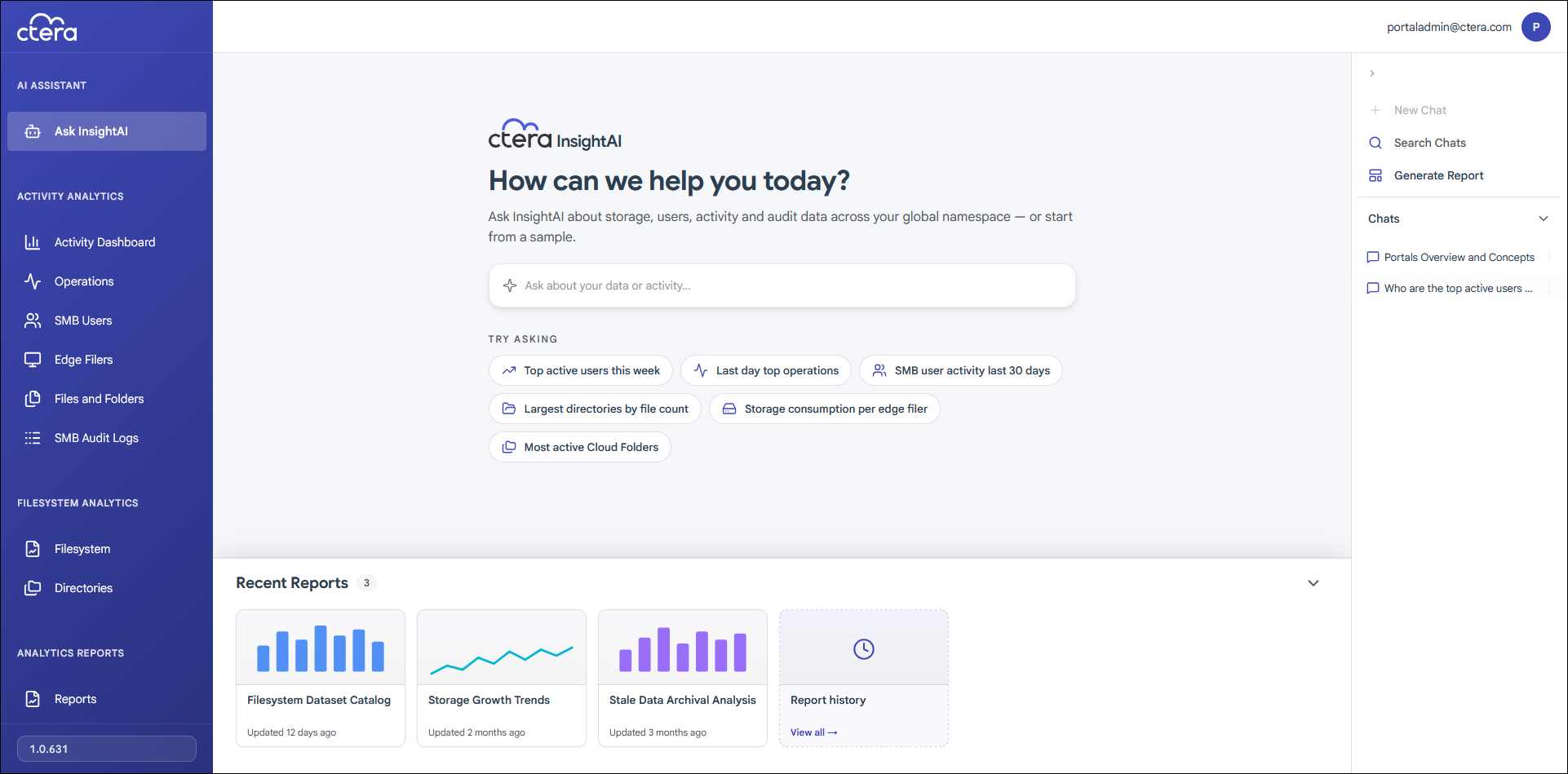
To choose the CTERA InsightAI color scheme:
- Launch CTERA Insight AI from the portal.
CTERA Insight AI is displayed in a new browser window.
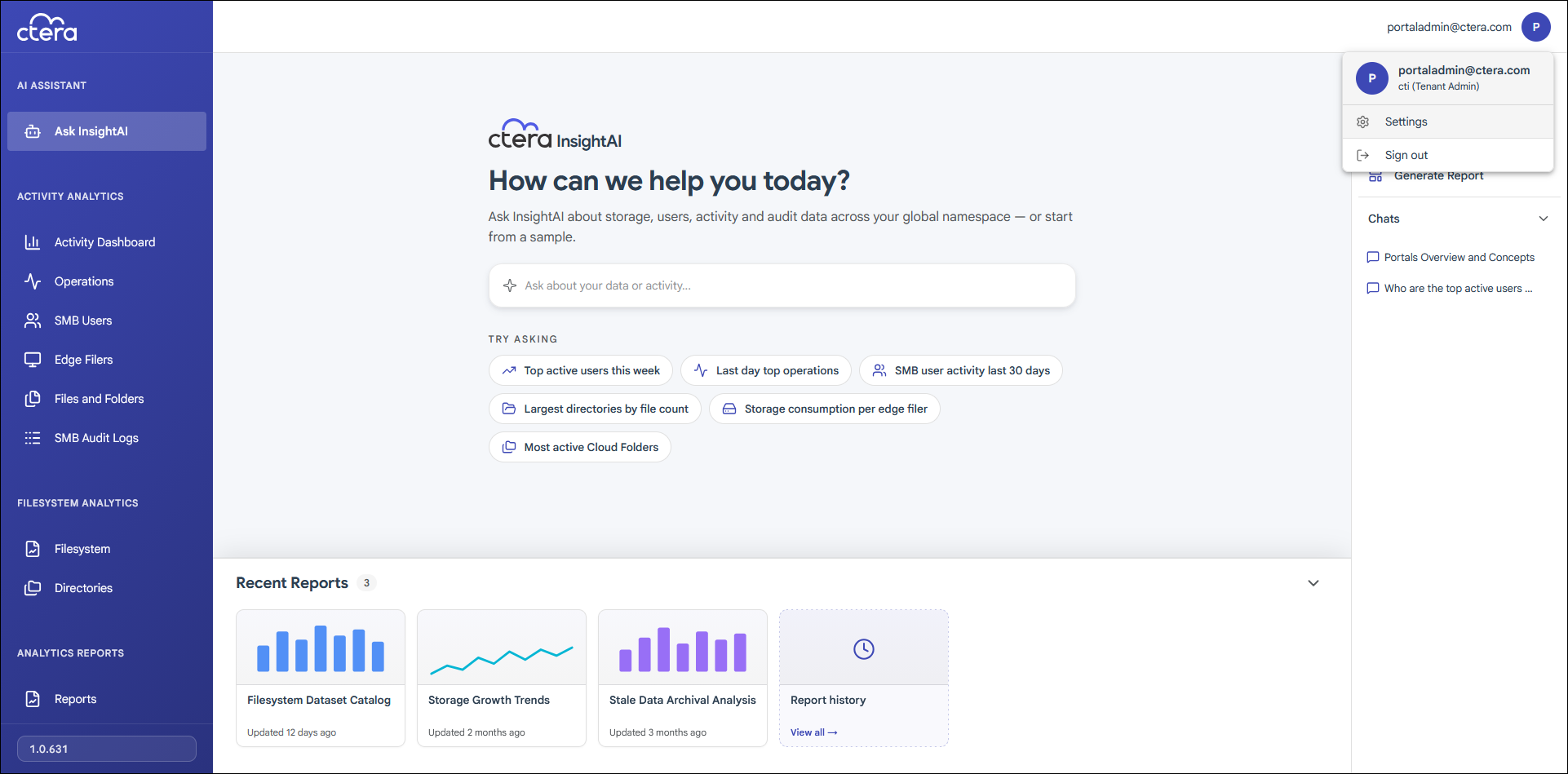
- Click the avatar at the top right, or your initials, if you have not yet configured an avatar, and select Settings.
The Settings page is displayed.
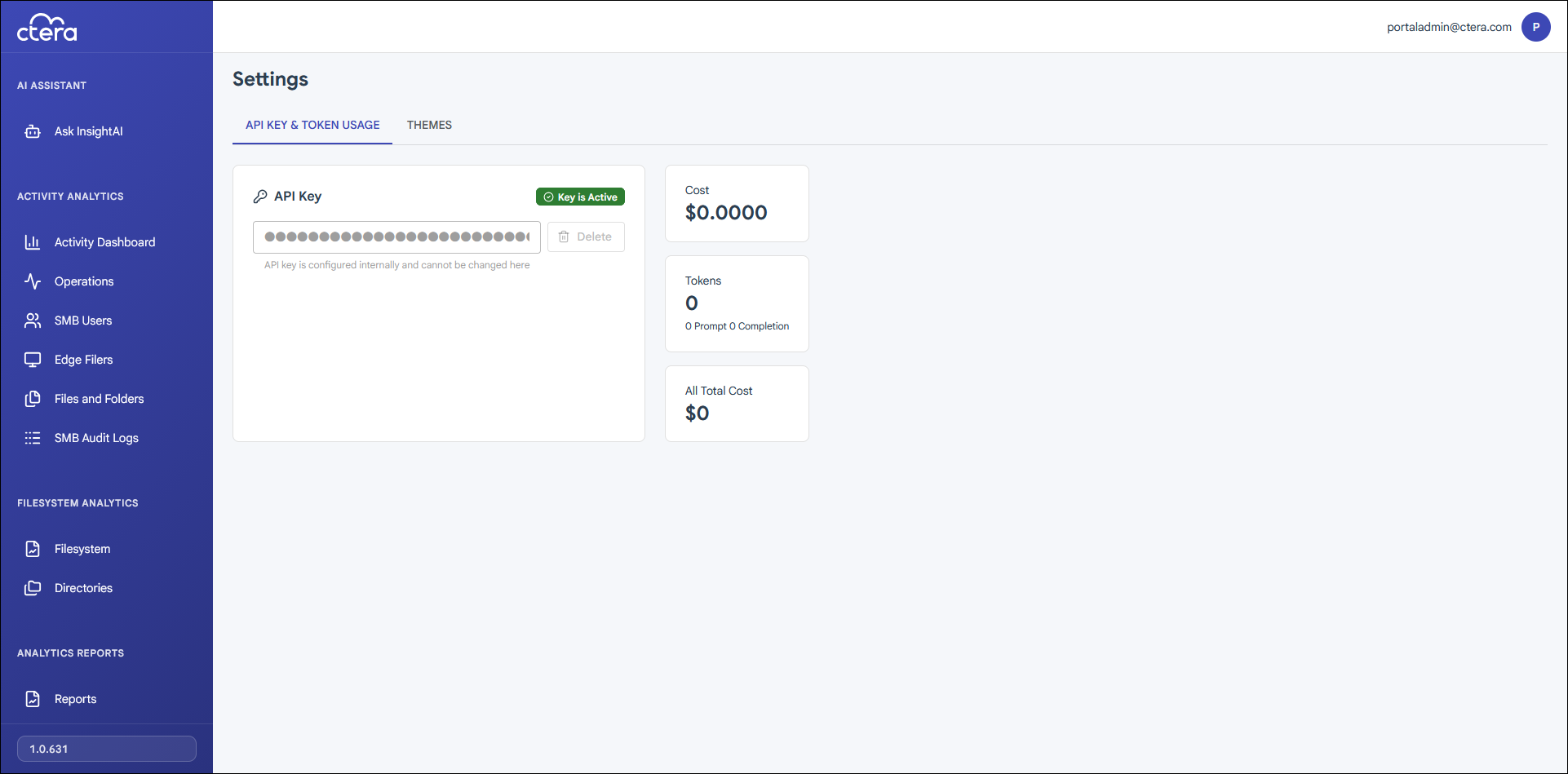
- Select the THEMES tab.
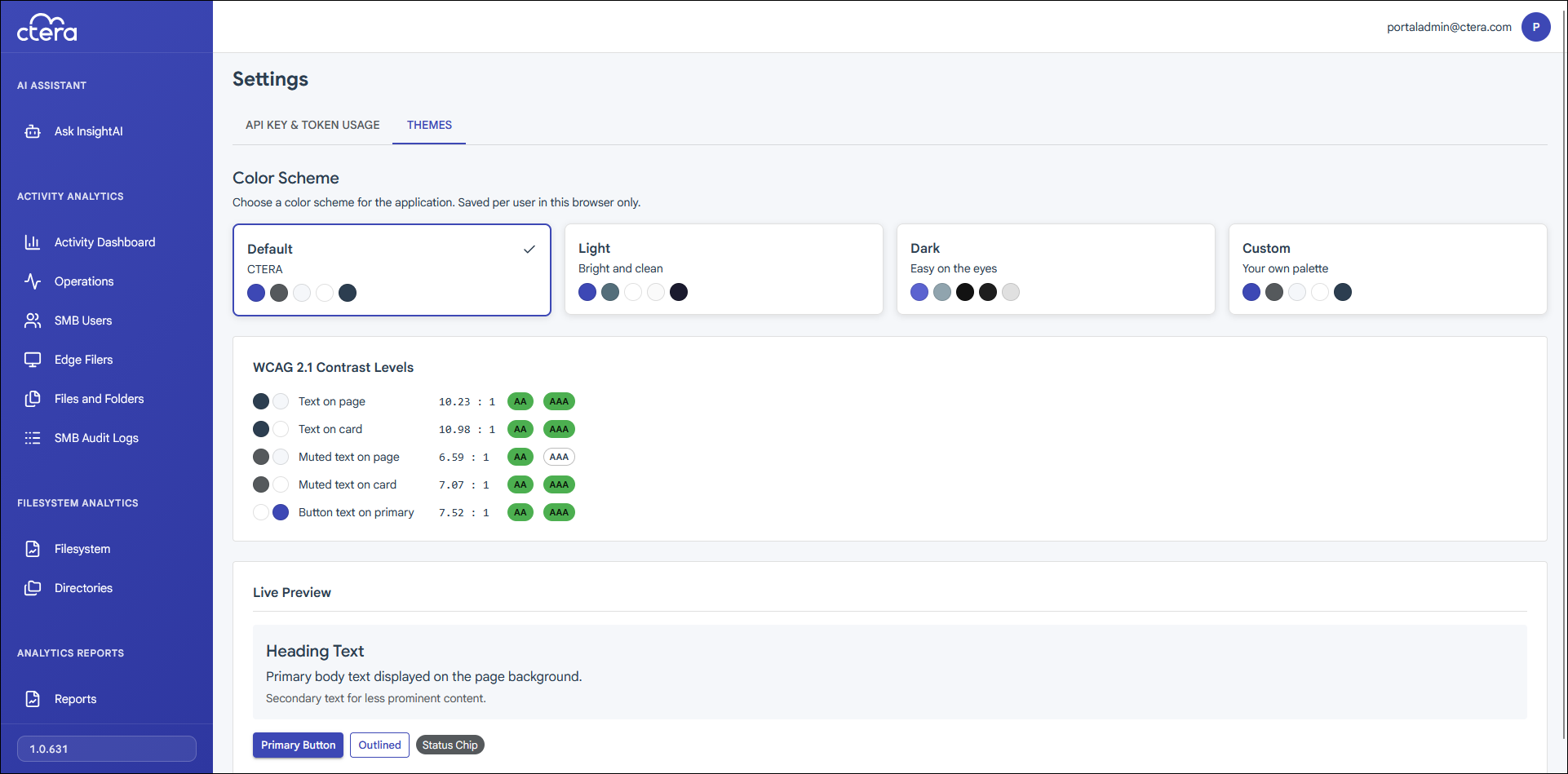
The default theme is the Light theme. - Click the Dark theme to see how it looks and set it as the theme.
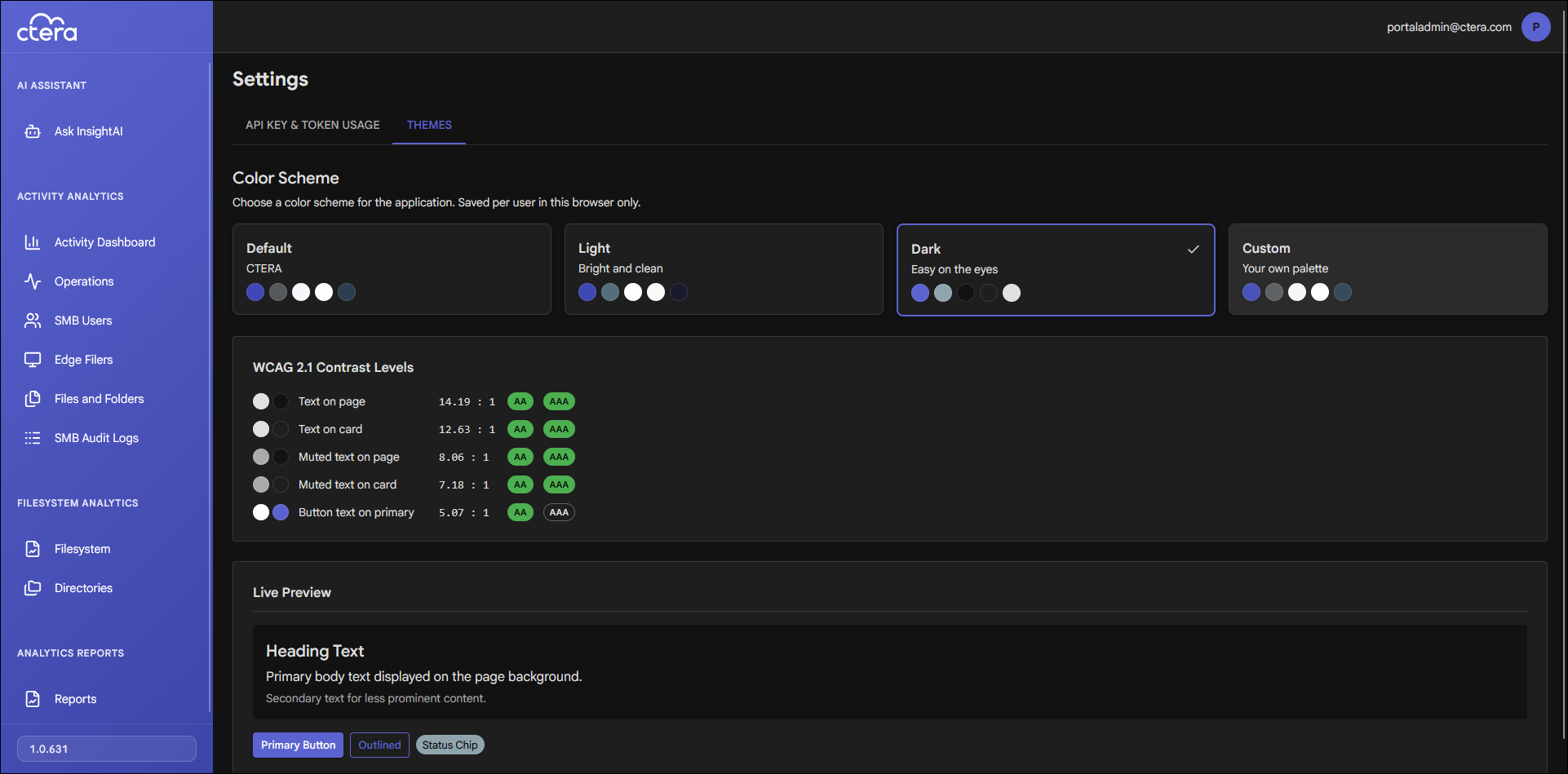
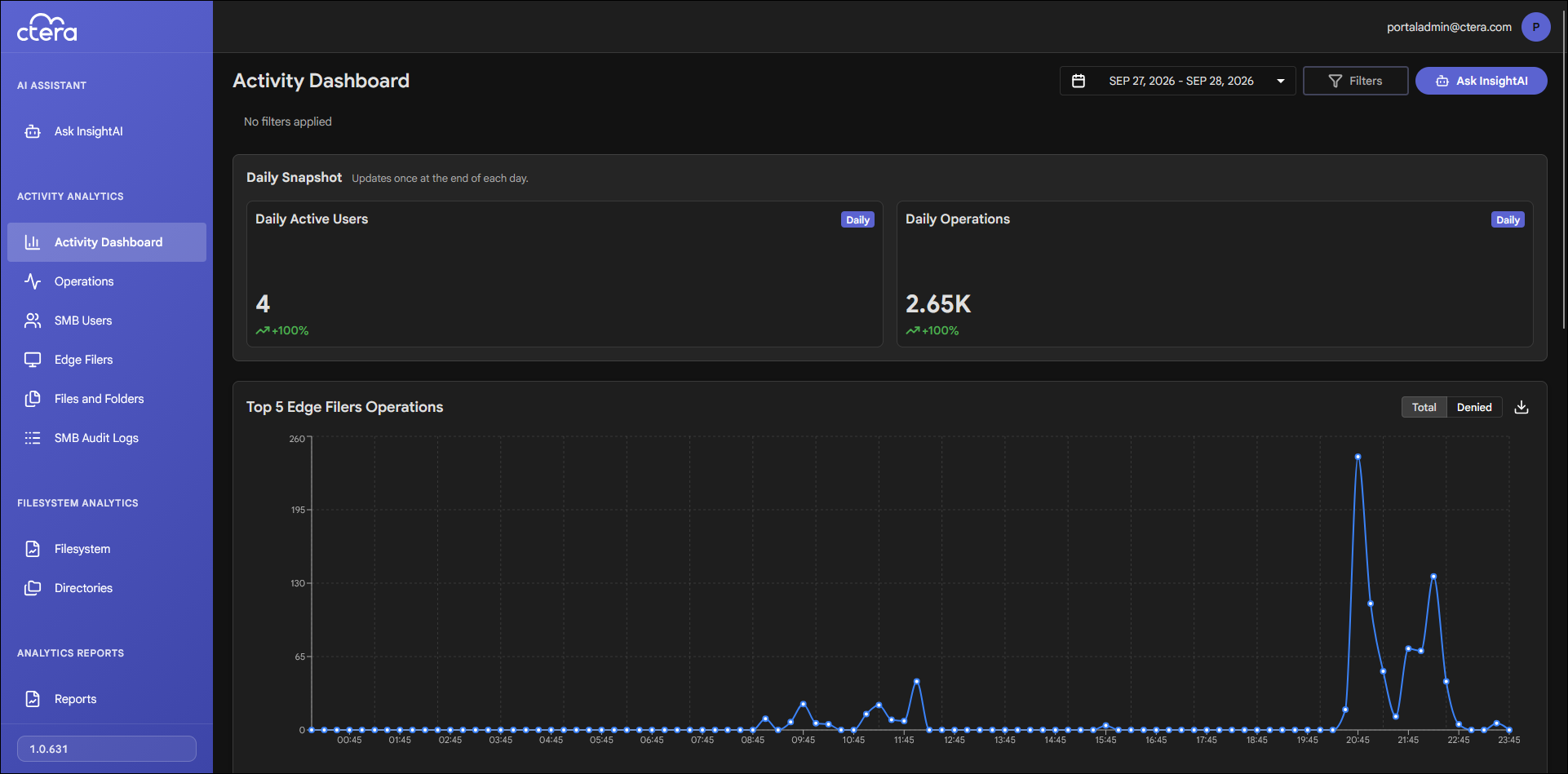
After selecting the Dark theme, CTERA InsightAI uses this theme. For example:
- Click the Custom theme to change the color scheme.
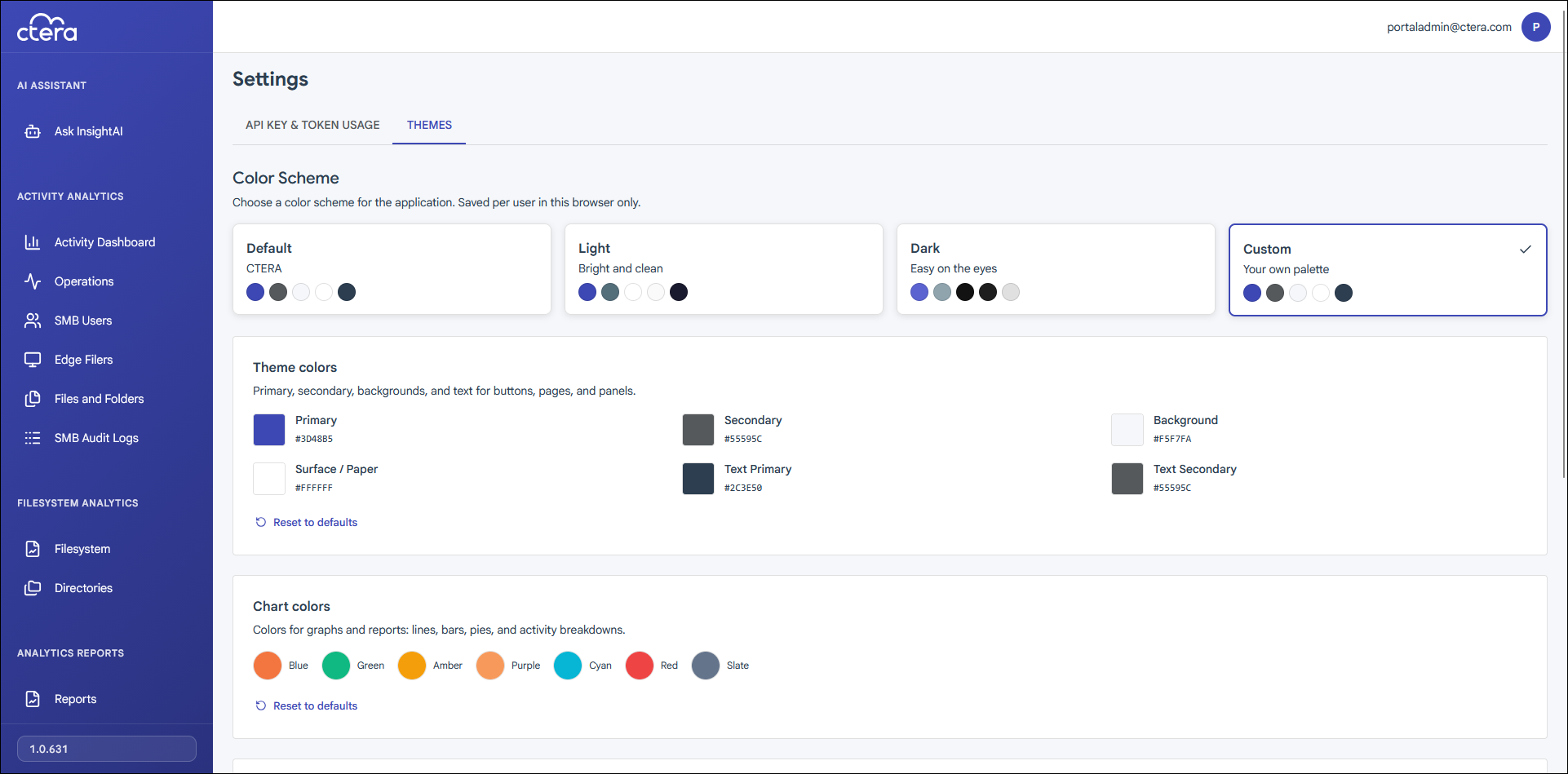
- Click a color in the Theme colors area to change that color.
A color selection window is displayed.
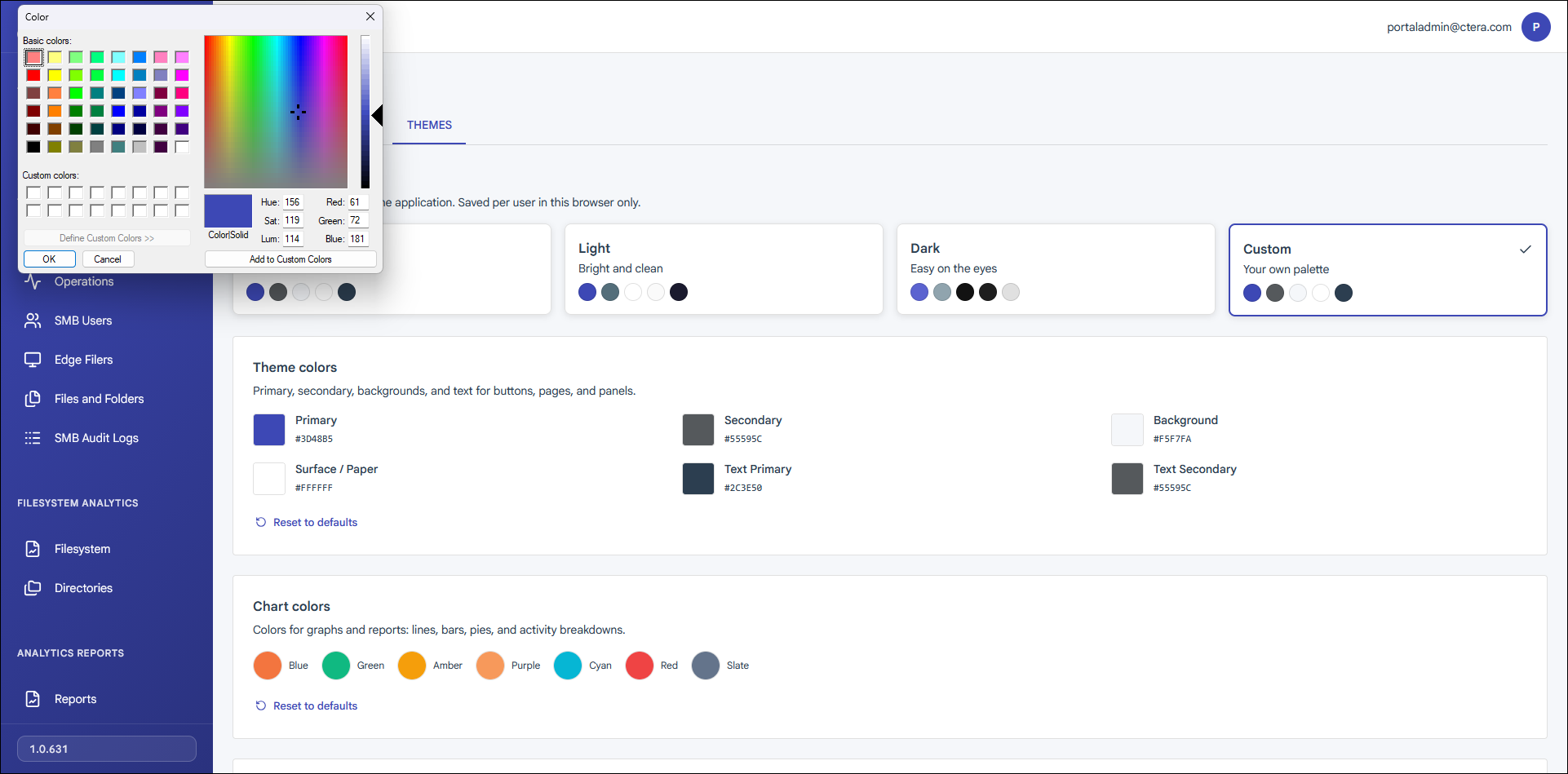
- Changing the color is immediately reflected in CTERA InsightAI.
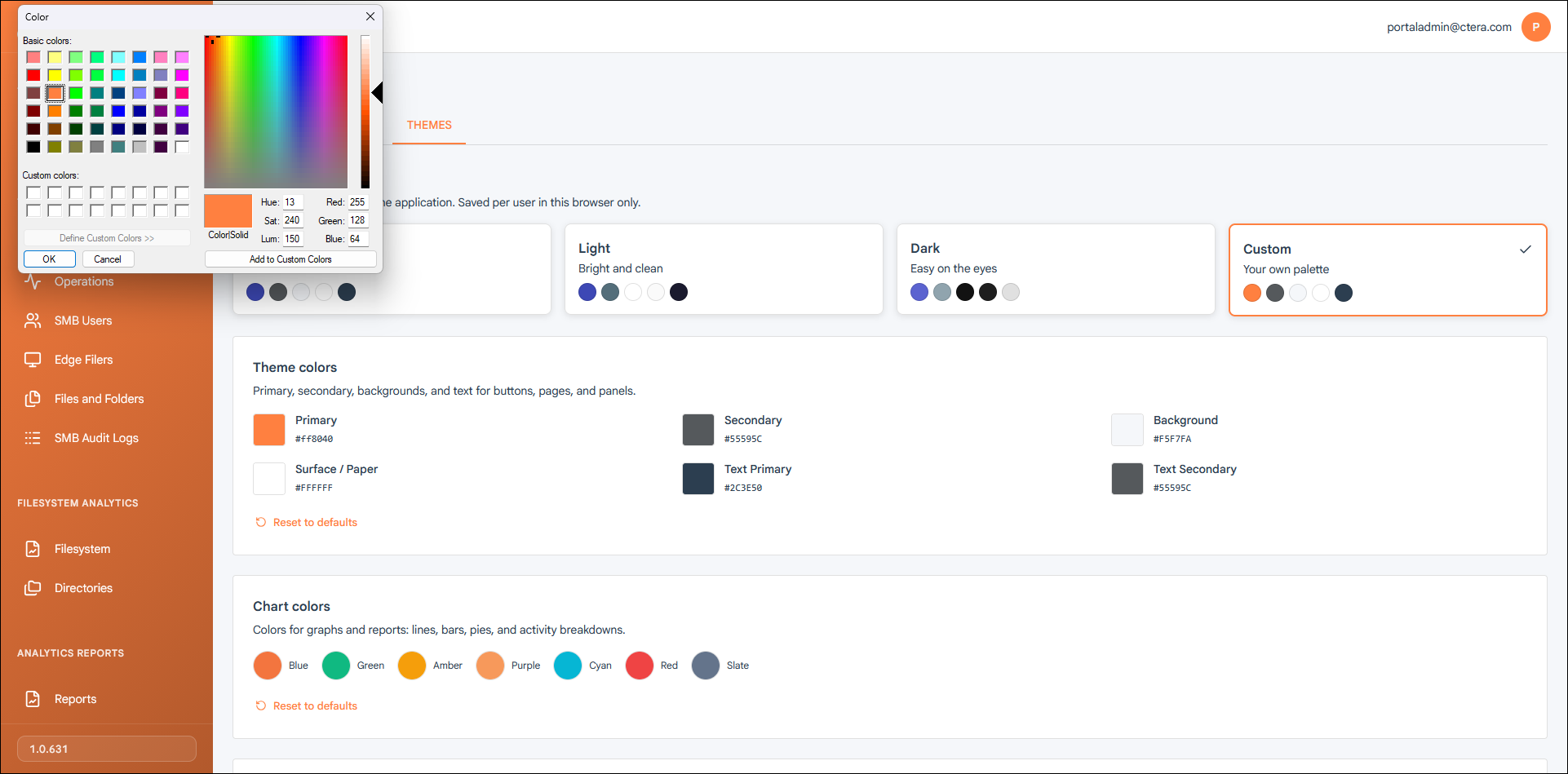
- Close the color palette and then click Reset to defaults to reset the original color scheme.
- Click a color in the Chart colors area to change that color for graphs and reports.
A color selection window is displayed. - Changing the color is reflected in CTERA InsightAI graphs and reports.
- Click Reset to defaults to reset the original color scheme.